Embedded web UI
Pantavisor Web UI: A Quick Guide
This guide explains how to use the web UI for a Pantavisor-enabled device, which lets you view and manage device information.
To access the UI, you’ll first need to find your device’s local IP address (see our previous guide on how to find the device’s IP address). Once you have the IP, open a web browser and navigate to http://<IP>:12368/app.
Transaction
The Home page is where you can view the current state of your device’s software and manage transactions.
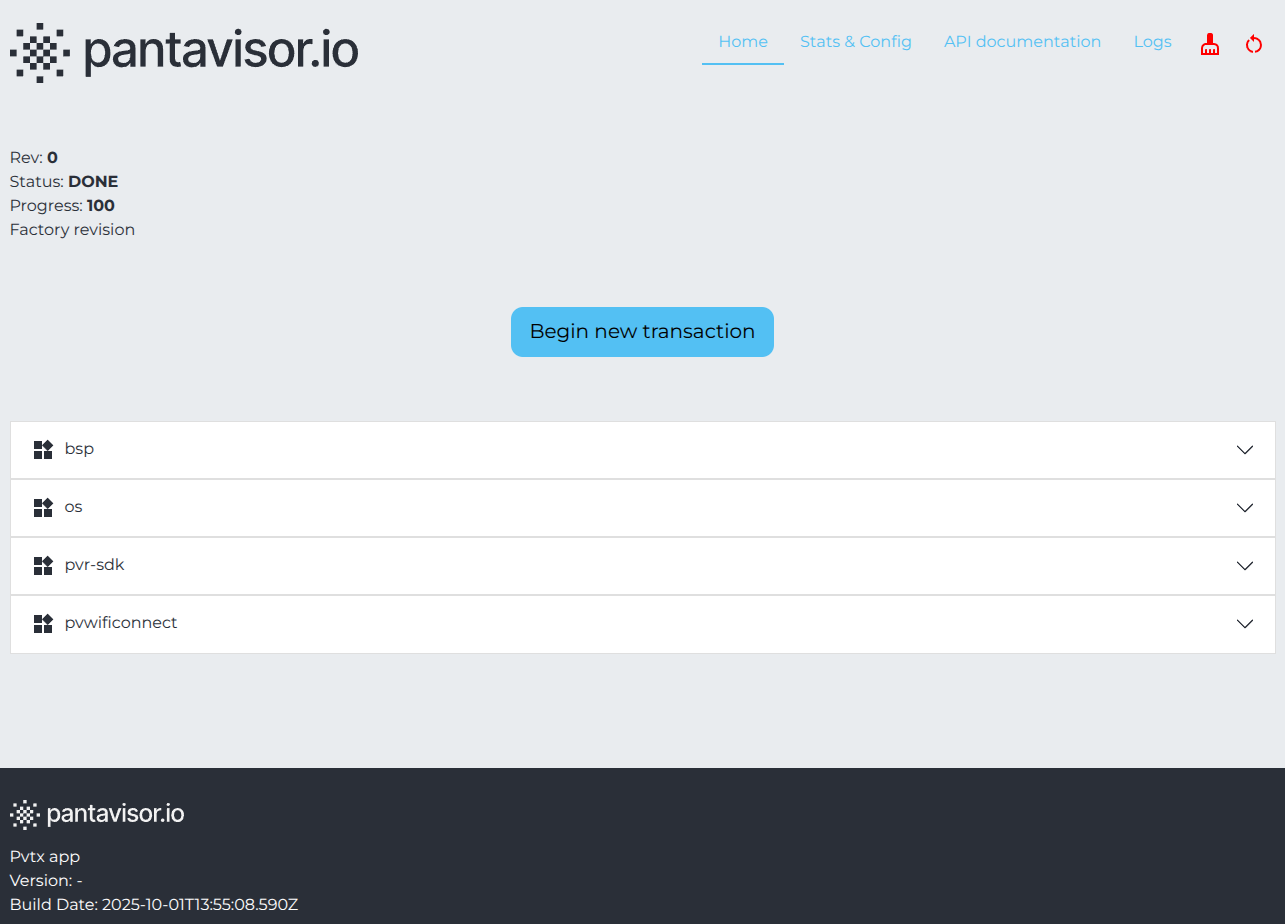
On this page, you’ll see:
- Status, Progress, and Revision: These indicate the device’s current state. A
Status: DONEandProgress: 100withRev: 0mean the device is in a stable, initial state. - Begin new transaction: This button starts a new transaction, which is how you manage updates and changes to the device’s software.
- BSP, OS, and SDK sections: These expandable sections display details about the Base System Platform (BSP), Operating System (OS), and Pantavisor SDK, allowing you to see the components that make up your device’s firmware.
More information of the transaction on []
Stats & Config
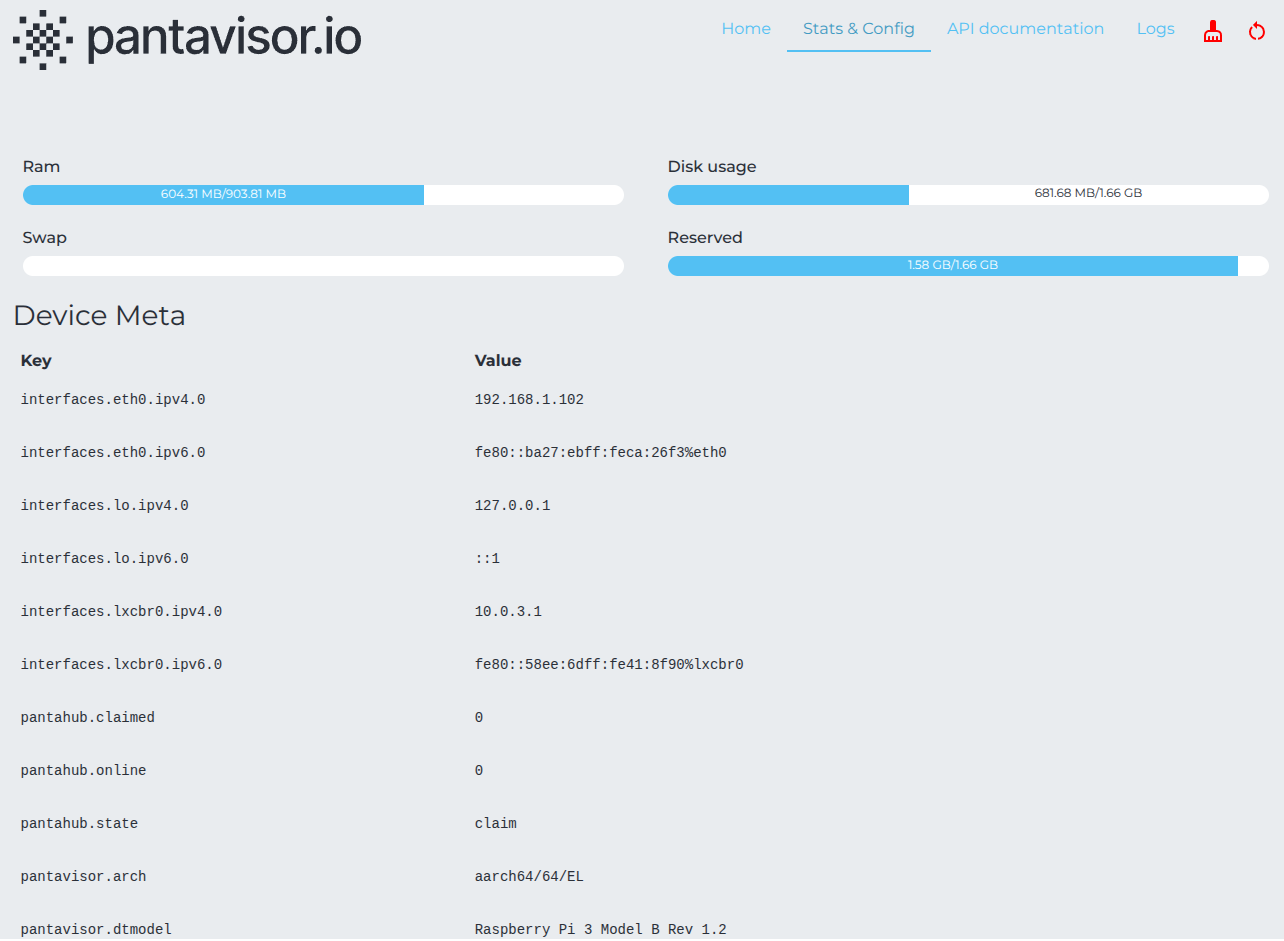
The Stats & Config page provides a detailed overview of your device’s hardware resources and its configuration settings. This page is divided into two main sections:
Device Stats
This section shows real-time resource usage:
- Ram: Shows the amount of used and total RAM.
- Swap: Displays swap space usage.
- Disk usage: Shows the used and total disk space.
- Reserved: This is disk space reserved by Pantavisor for system operations.
Device Meta & Config
This section displays key configuration information:
- IP Addresses: Lists the IPv4 and IPv6 addresses for each network interface, such as
eth0andlo(loopback). - Pantahub Status:
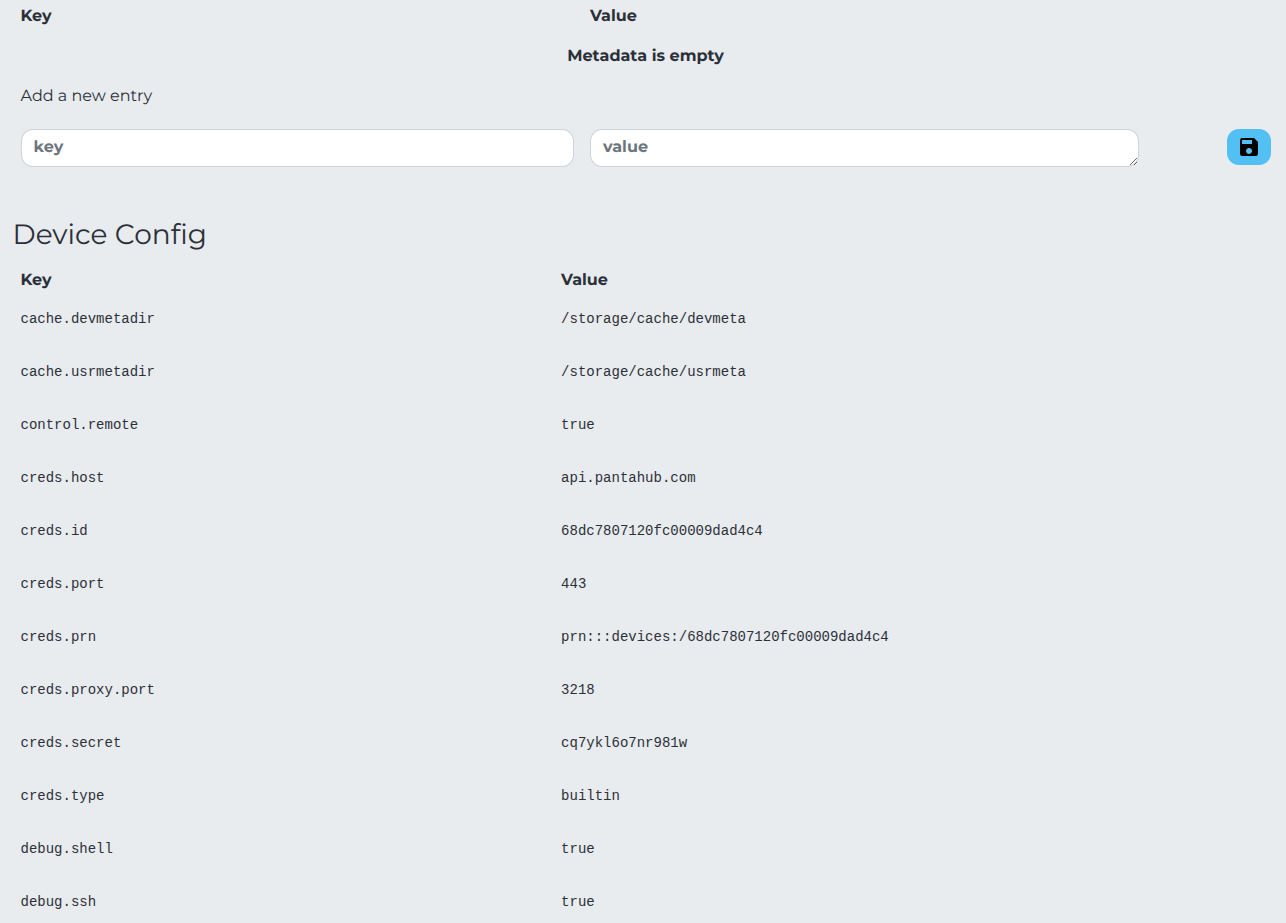
pantahub.claimedandpantahub.onlineshow whether the device is connected to and claimed on the Pantahub platform.pantahub.stateindicates the device’s current connection state (e.g.,claim). - Device Configuration: The Device Config table lists various key-value pairs that define the device’s behavior. These include:
creds.hostandcreds.port: The host and port used for connecting to the Pantahub API.creds.id: The unique ID of the device.creds.prnandcreds.secret: The device’s Pantahub Resource Name and secret key for authentication.
Logs
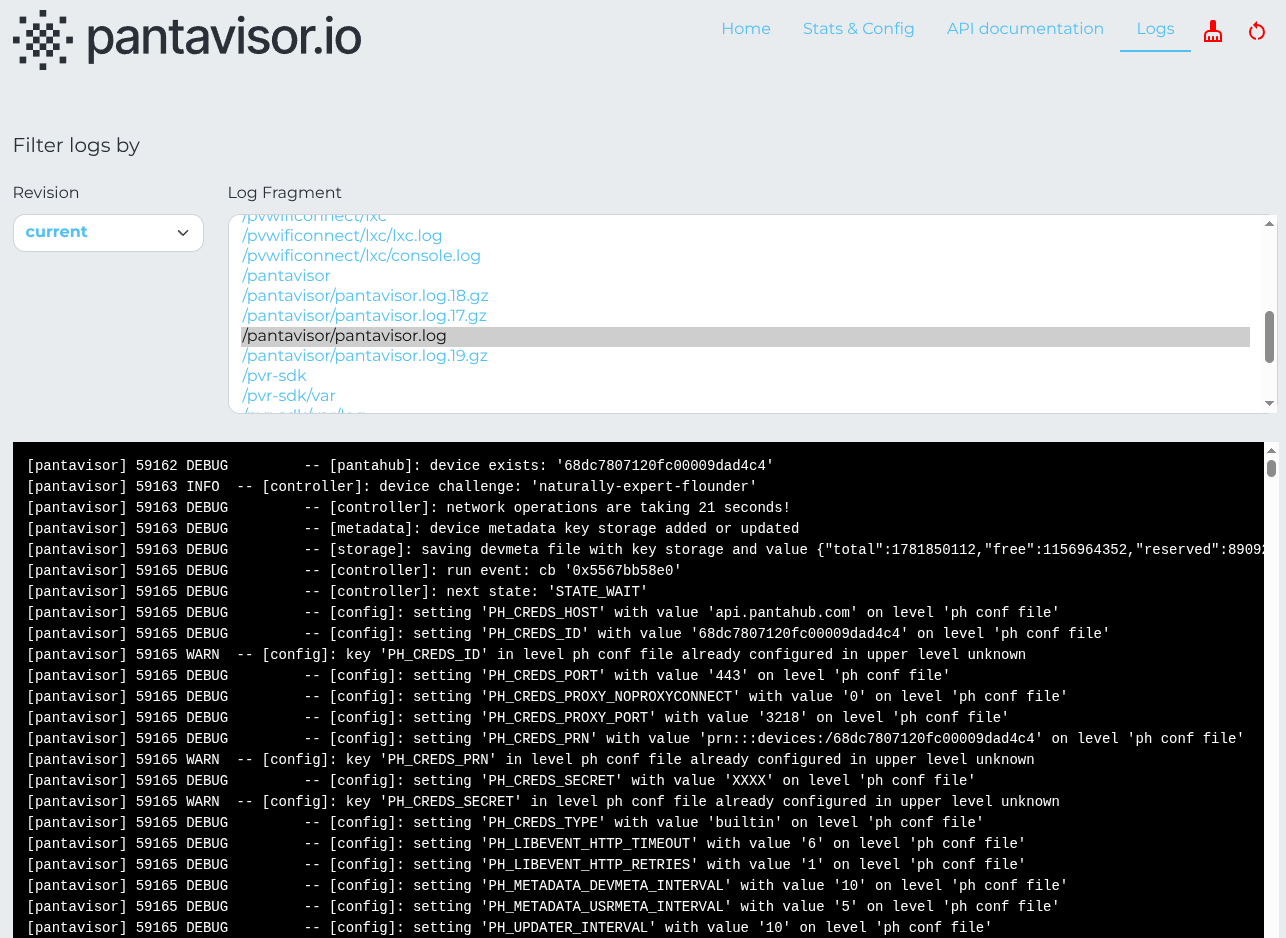
The Logs page is where you can view and troubleshoot system activity.
- Log Fragments: On the left, you can select different log files or fragments to view. These logs are often categorized by component, such as
pvwifi(Pantavisor Wi-Fi),pvr-sdk, and the corepantavisorlogs. - Log Output: The main window displays the content of the selected log file. Log entries are timestamped and categorized by severity level, such as
DEBUG,INFO, andWARN, making it easier to identify issues. For example,[pantahub] DEBUGentries provide detailed information on the device’s communication with Pantahub. You can see the device’s connection status, configuration settings being loaded, and network operations.