Access Your Applications
Open Web Interface
- Find your device IP address (shown in upper-right corner)
- Open a web browser
- Navigate to
http://[device-ip]:8123for Home Assistant
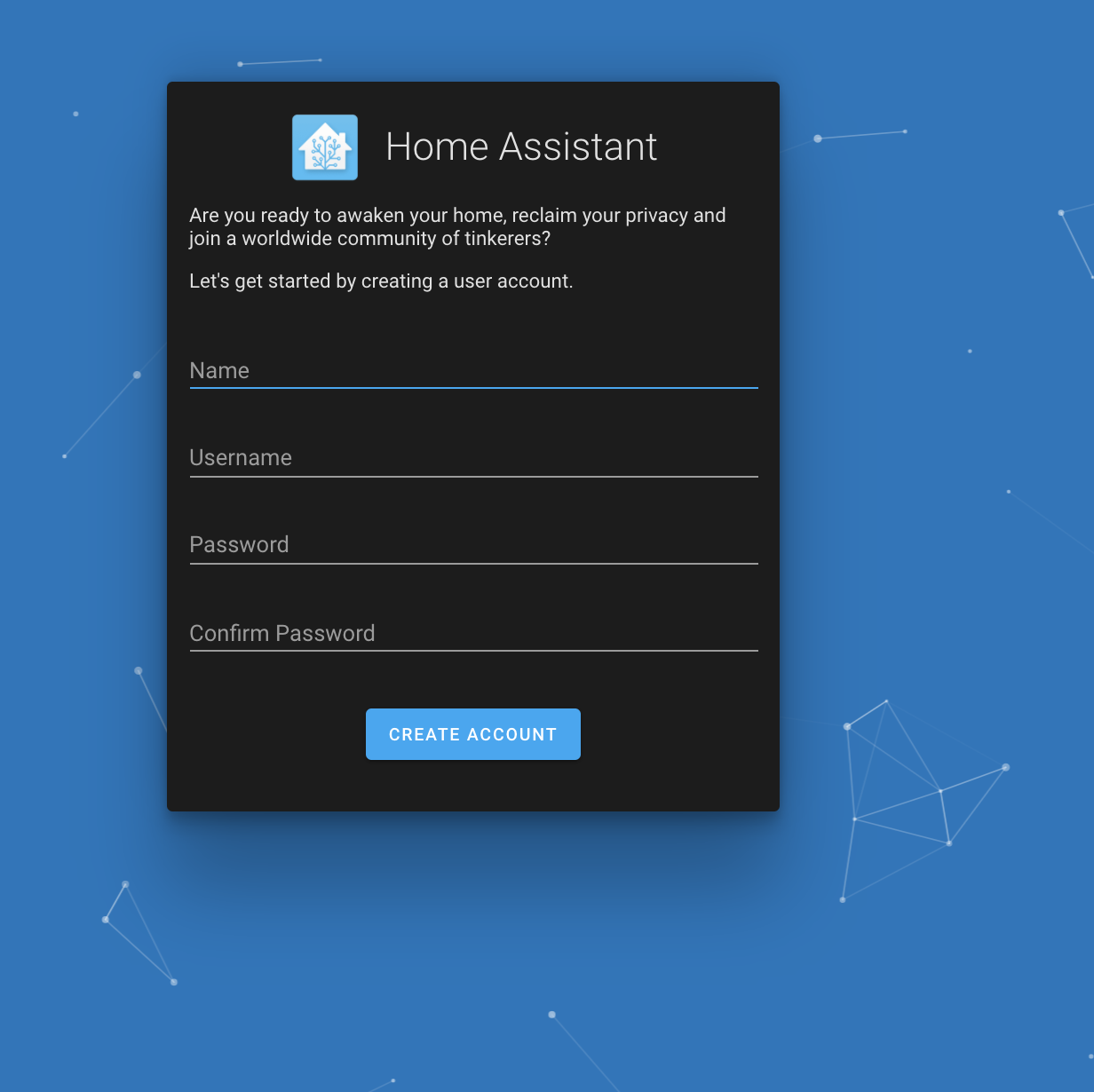
Note: The default port for Home Assistant is 8123, but check the application manifest if you need to confirm the port.
Finding Application URLs
Check Port Numbers:
pvr app ls
# View port mappings for each app
Common Application Ports:
- Home Assistant: http://[device-ip]:8123
- Node-RED: http://[device-ip]:1880
- Grafana: http://[device-ip]:3000
- Portainer: http://[device-ip]:9000
Accessing from Different Networks
Local Network Access:
- Use the device IP address directly
- Access from any device on the same network
Remote Access (Advanced):
- Configure port forwarding on your router
- Use VPN for secure remote access
- Consider cloud-based access solutions
Web Interface Tips
Browser Compatibility:
- Use modern browsers (Chrome, Firefox, Safari)
- Enable JavaScript for full functionality
- Clear cache if pages don’t load properly
Mobile Access:
- Most applications work on mobile browsers
- Some apps offer dedicated mobile interfaces
- Consider bookmarking frequently used apps
Troubleshooting Access
Can’t Access Application:
- Verify application is running with
pvr app ls - Check firewall settings on your computer
- Confirm you’re using the correct IP and port
- Try accessing from the device itself first
Page Won’t Load:
- Wait for application to fully start (can take 1-2 minutes)
- Check network connectivity
- Verify the application started without errors
- Try refreshing the page or clearing browser cache
Connection Refused:
- Application may still be starting up
- Check if port is already in use by another service
- Verify port mapping in application configuration
Security Considerations
Default Credentials:
- Many applications have default usernames/passwords
- Change default credentials immediately
- Use strong, unique passwords
Network Security:
- Consider which applications should be accessible externally
- Use HTTPS when available
- Regularly update applications for security patches
Next Steps
- Try installing additional apps from Docker Hub
- Learn about managing updates for your system
- Join the Community Forum for support and tips